
Tutorial: your first 30 minutes
A hands-on tour. Each step says what to do and what you should see. Steps marked optional need Zotero, an AI key or Anki; skip them if you don't use those.
New to the method itself? Read What is a Zettelkasten? first. It takes five minutes.
1. Install and open the welcome vault
- Download ZettelApp-Setup.exe from the latest release
and run it, or unzip ZettelApp-Portable.zip and run
ZettelApp.exe. - Start ZettelApp.
You should see the Notes page with eleven linked starter notes in a new vault in Documents\ZettelApp. "Welcome to ZettelApp" is open in the editor. After a moment, ZettelApp also offers the optional Lost Prince of the Archive adventure; choose Not now if you prefer this written tour.
2. Create a note
- Press Ctrl+N.
- Type a title, for example Spaced repetition, and press Enter to move to the text.
- Write one idea in your own words, in two or three sentences: Reviewing material at increasing intervals helps long-term memory, because each review happens just before forgetting.
You should see the note appear at the top of the list. There is no Save button: notes save as you
type. The ID under the title (for example 20261027153012) is the note's permanent address.
3. Add tags
Click Add tag under the title, type learning, and press Enter. Add memory too.
You should see two chips, #learning and #memory. The tag filter above the list now offers them,
and typing tag:memory in the search box finds the note.
4. Link to another note
- Create a second note (Ctrl+N) titled Forgetting curve, with one sentence: Memory fades quickly unless information is reviewed.
- Go back to Spaced repetition (click it in the list). In the text, type
[[and thenForg. - Pick Forgetting curve from the completion list and press Enter.
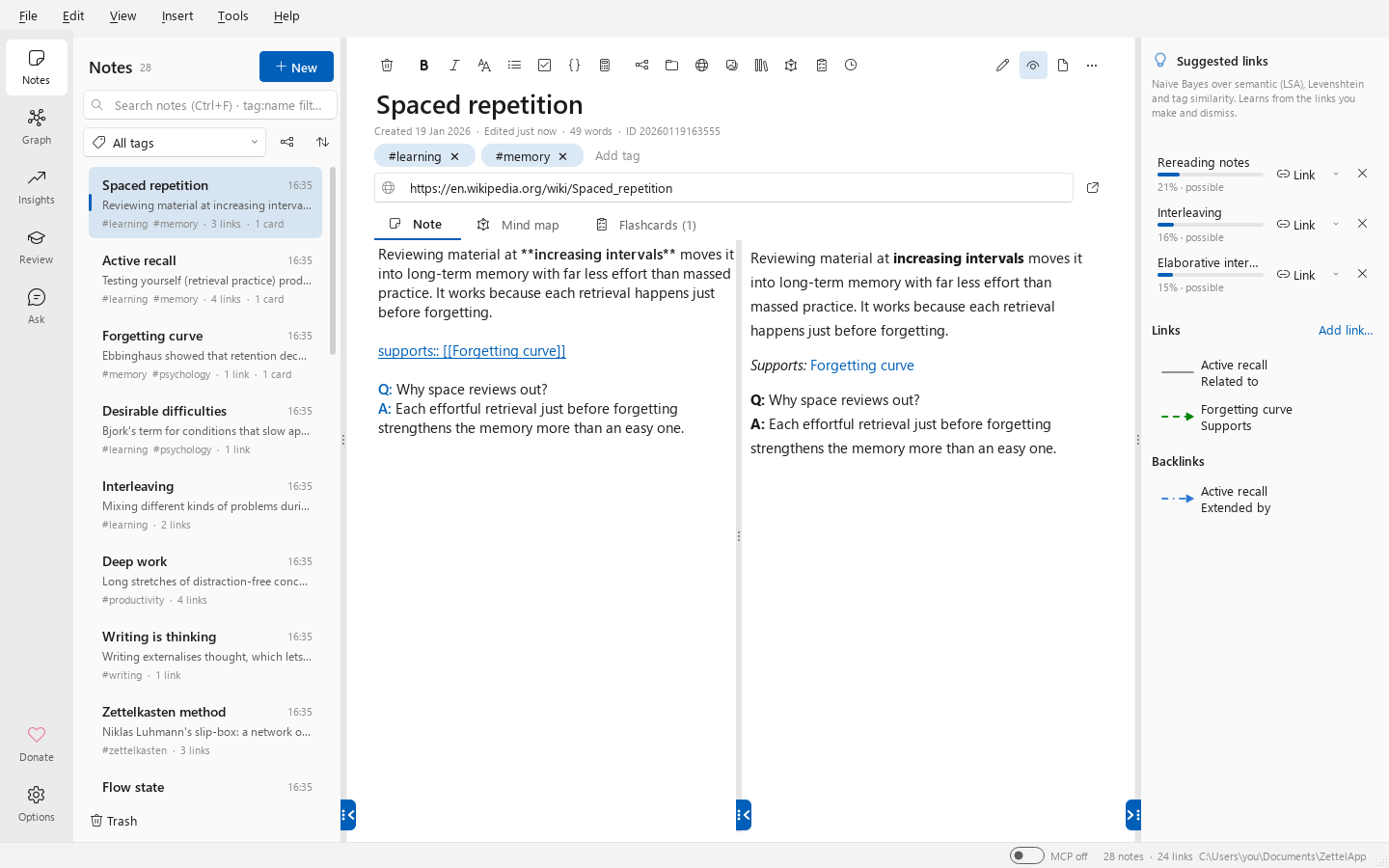
You should see [[Forgetting curve]] underlined in the text. In the side panel, Forgetting curve
appears under Links. Click the eye button (Split) in the toolbar: the preview shows a clickable
link.
5. Say how the notes relate
Change the link to a typed link by putting supports:: in front:
supports:: [[Forgetting curve]]
You should see the link listed as Supports in the side panel. Open Forgetting curve: its
Backlinks read Spaced repetition: Supported by, because supports is a directed link type.
Plain [[links]] mean Related to.
6. Use a suggested link
Write a few more notes on related ideas, for example Active recall and Interleaving, each with a
sentence or two and the tag learning. Then open one of them and look at Suggested links in the
side panel.
- Click Link to accept a suggestion. The small arrow next to it picks a link type.
- Click ✕ to dismiss one that doesn't fit.
- Hover a suggestion to see why it was suggested: each measure's evidence for or against.
What the model learns: accepted suggestions become links, which train the classifier as positive examples. Dismissed ones are remembered as negative examples and never suggested again for that pair. Suggestions get better the more you use them. See Link suggestions.
7. Add an image
Copy any picture (for example with Win+Shift+S), click in the note's text and press Ctrl+V. You can also drag an image file in, or use Insert ▸ Image….
You should see  in the text and the image in the preview. Because it's the note's
first image, it also becomes the title image, shown as a thumbnail in the note list and inside the
note's circle
in the graph.
8. Sketch a mind map
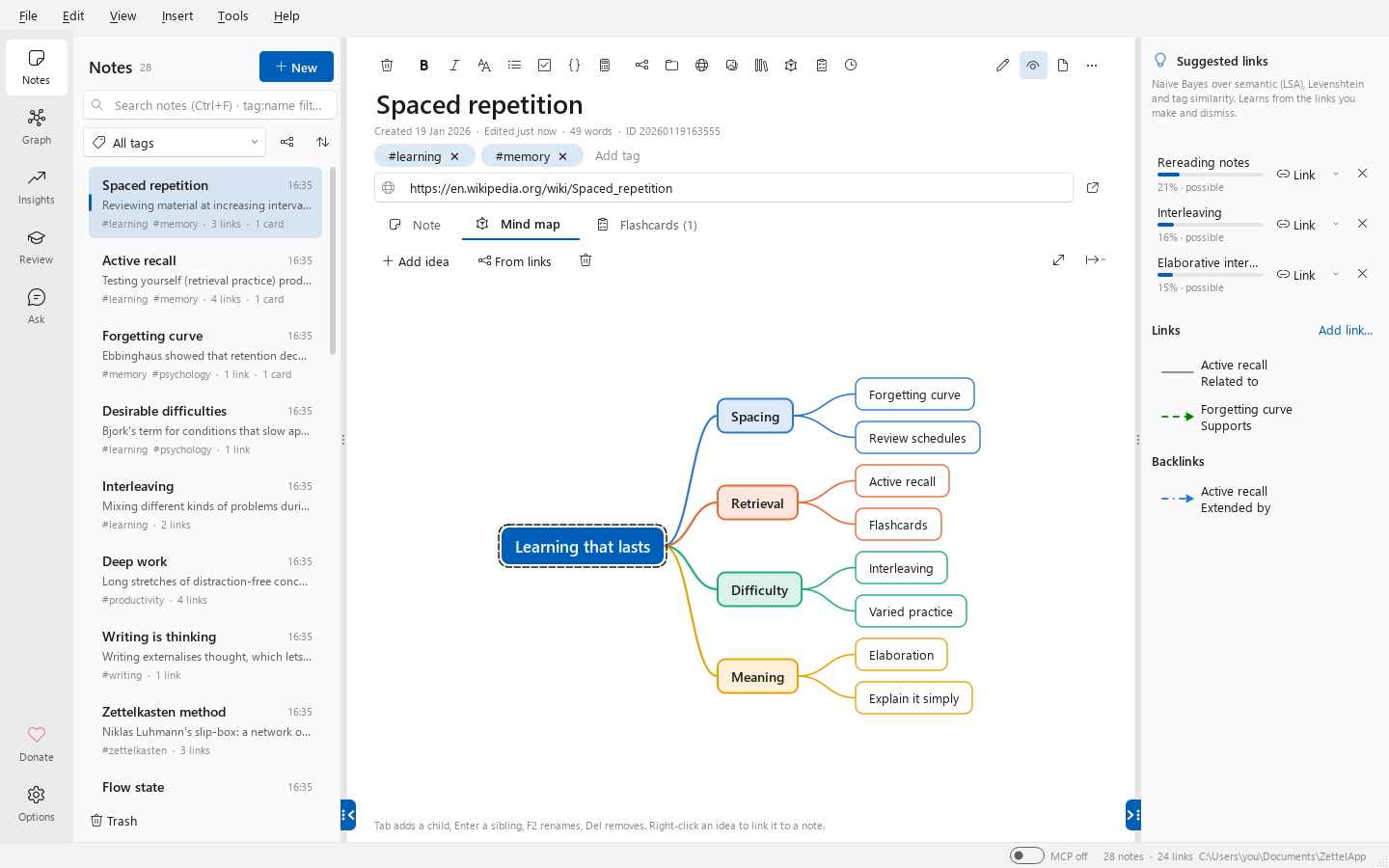
- Open the Mind map tab and click Add idea.
- Press Tab to add a child idea, Enter for a sibling, F2 to rename and Del to delete. Arrow keys move between ideas.
- Now click From links, and confirm that it may replace the map you just drew.
You should see a mind map built from the note's links, grouped by link type, with each linked note's own links one level deeper. Right-click any idea to link it to a note. The export button saves PNG, SVG or FreeMind.
9. Make flashcards and review them
Add these lines to the text of Spaced repetition:
Q: Why space reviews out?
A: Each effortful retrieval just before forgetting strengthens the memory.

{{c1::Hermann Ebbinghaus}} described the forgetting curve.
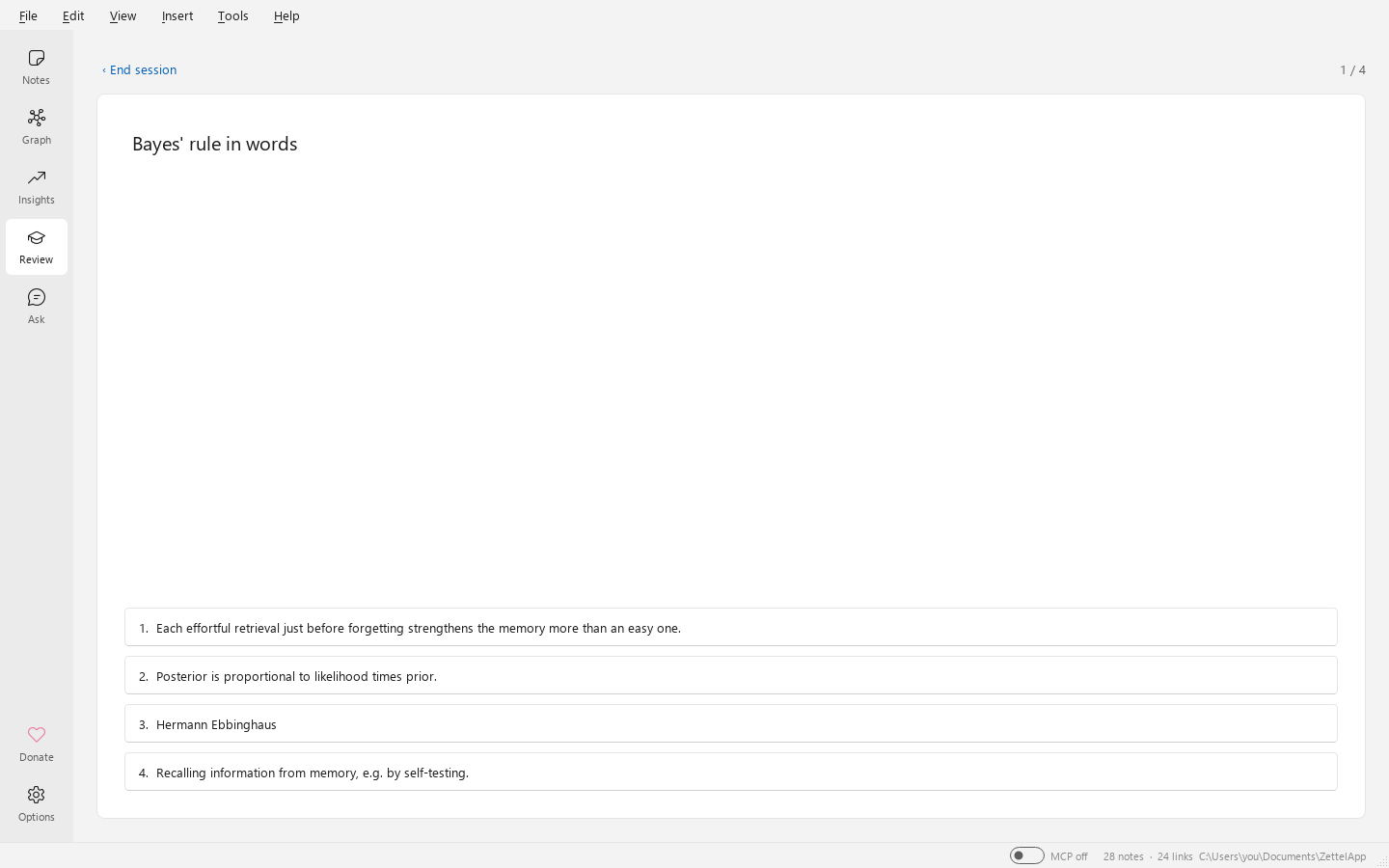
You should see Flashcards (2) on the tab: a question card and a cloze card. Now open Review (Ctrl+4) and click Start review.
- Press Space to show the answer.
- Grade yourself with 1–4 (Again, Hard, Good, Easy).
The SM-2 schedule decides when each card comes back. Try Practice quiz ▸ Multiple choice or Name that note as well.
10. Explore the graph
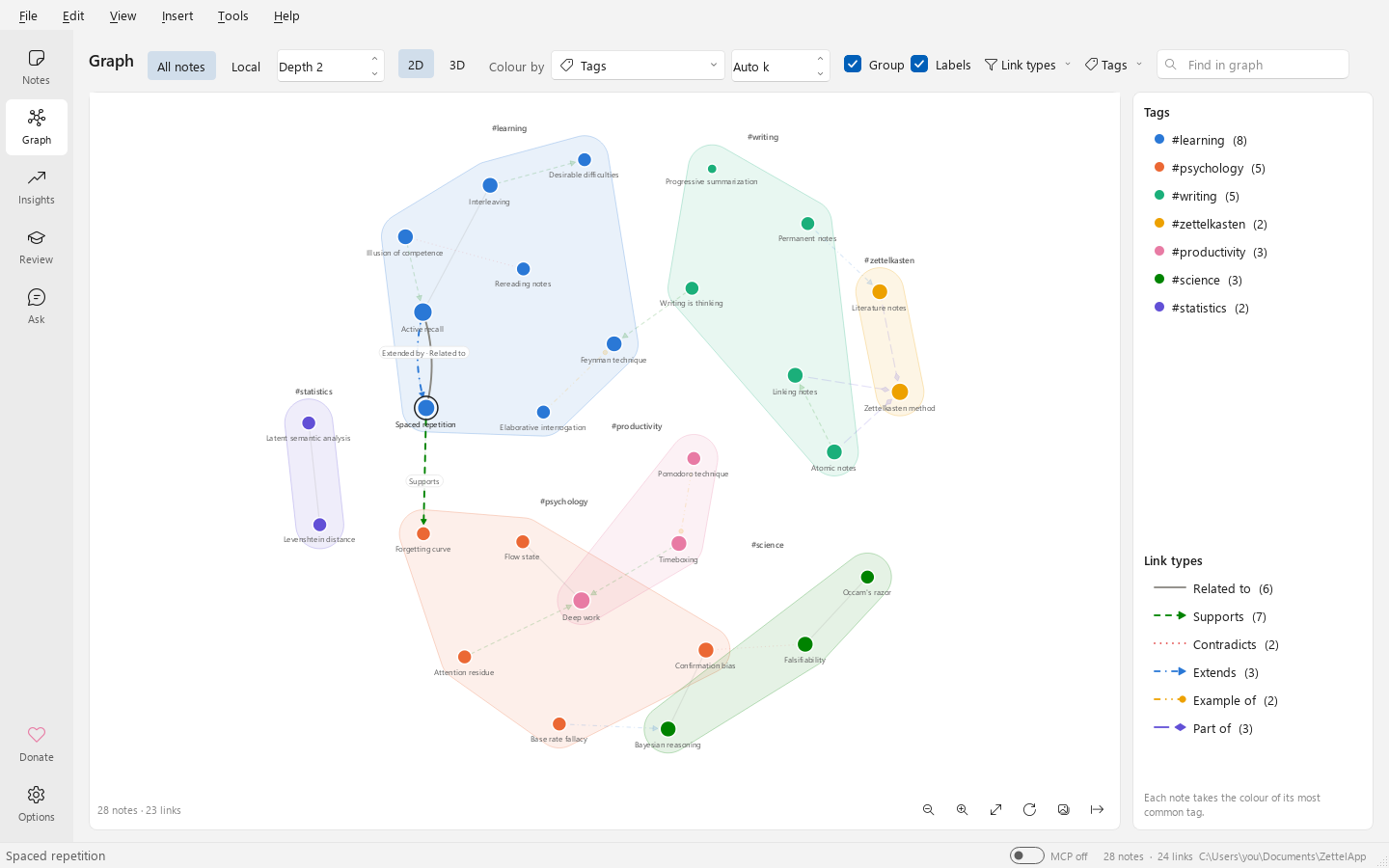
Open Graph (Ctrl+2).
- Drag notes around, use the wheel to zoom, and hover a note to highlight its neighbours.
- Select a note in the Notes page, come back and click Local, then change Depth to 1, 2 or 3.
- Set Colour by to Clusters: k-means. Notes are grouped by meaning, and the legend names each cluster by its keywords.
- Toggle Group to pull each group together on a shaded background.
- Click 3D, drag to orbit and try Rotate automatically.
11. Check your Insights
Open Insights (Ctrl+3) for counts, notes per month, top tags, links by type and the most connected notes. Unlinked notes is your to-do list: link them to something. Every chart has a table view.
12. Cite a Zotero item and write a literature note (optional)
With Zotero 7+ running, and Allow other applications on this computer to communicate with Zotero turned on in its Settings ▸ Advanced:
- Choose Insert ▸ Zotero Reference…, search for an item and click Insert citation: a link like Ebbinghaus (1885) that opens the item in Zotero.
- Do it again and click New literature note.
You should see a new note with the reference, Open in Zotero and Open PDF links, the abstract and
Key ideas / My thoughts sections, tagged literature. See Zotero.
13. Ask your notes (optional)
- In Tools ▸ Options ▸ AI assistant, choose a provider (Anthropic, OpenAI or Z.ai), paste your API key and click Test connection.
- Open Ask (Ctrl+5) and ask: How do spacing and retrieval work together?
You should see an answer that cites your notes as links, and the exact list of sources sent. Only those notes and your question leave your computer. See Ask your notes.
14. Export a subgraph and sync to Anki (optional)
- Open a note, choose File ▸ Export… (Ctrl+Shift+E), pick Current note and linked notes, depth 2, and the Website format.
- Open the zip's
index.htmlin your browser: a small website of that part of your Zettelkasten. - With Anki running and the AnkiConnect add-on (code
2055492159) installed, open Review and click Sync to Anki. Each card's source link opens the note in ZettelApp.
See Export and import and Anki.
15. Know where your data lives
- Your notes live in the vault folder (File ▸ Show Vault in File Manager):
zettel.dbplusassets. - A backup is made automatically once a day, and File ▸ Back Up Vault Now makes one any time.
- Deleted notes go to the Trash under the note list, where you can restore them.
Details in Privacy and security.
That's it. Keep writing one idea per note, link each new note with a reason, and let suggestions and the graph show you what you have. Shortcuts are in Keyboard shortcuts.